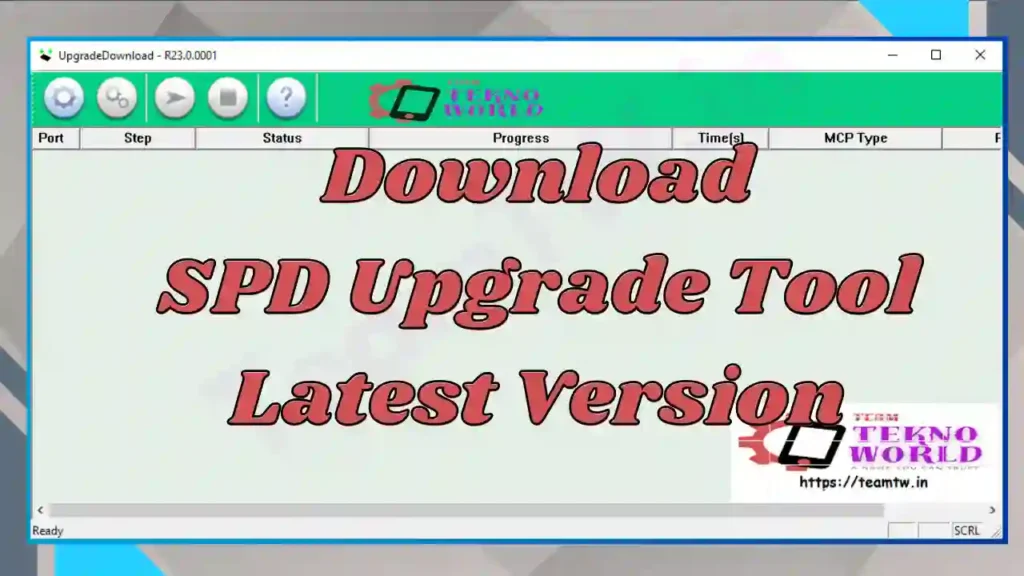
Agar aap Spreadtrum / Unisoc chipset based Android phones me software problems jaise hang on logo, bootloop, dead phone, auto restart ya firmware corruption face kar rahe hain, to SPD Upgrade Tool Download aapke liye ek trusted aur professional solution hai. SPD Tool, jise SPD Flash Tool ya Spreadtrum Flash Tool bhi kaha jata hai, ek Windows-based firmware flashing utility hai jo specially .pac firmware files ke liye design ki gayi hai.
Is master guide me hum SPD Upgrade Tool kya hai, iske features, latest version download, installation, step-by-step flashing process, common errors, aur important safety tips detail me cover karenge – bilkul ek senior mobile repair expert ke training-style explanation ke saath.
⚠️ Important Disclaimer
This guide is for educational and diagnostic purposes only.
Iska use sirf device connection, firmware flashing aur software troubleshooting ke liye karein.
Hum kisi bhi illegal modification ya security bypass ko promote nahi karte.
What is SPD Upgrade Tool?
SPD Tool ek official flashing software hai jo Spreadtrum / Unisoc chipset par based smartphones, feature phones aur tablets par stock firmware install ya upgrade karne ke kaam aata hai.
Ye tool zyada tar mobile technicians, service centers aur manufacturers use karte hain, kyunki ye PAC firmware ke saath stable aur reliable flashing provide karta hai.
Simple words me:
Jab phone Unisoc / SPD chipset par ho aur firmware .pac format me ho, tab SPD Upgrade Tool best option hota hai.
SPD Upgrade Tool – Key Features
🔹 Portable Application
SPD Upgrade Tool ek portable software hai, matlab:
- Installation ki zarurat nahi
- ZIP download → extract →
UpgradeDownload.exerun - Tool turant launch ho jata hai
Ye feature technicians ke liye kaafi convenient hota hai, especially field work ke dauran.
🔹 Flash & Upgrade Firmware
SPD Flash Tool ka main kaam:
- Stock firmware flashing
- Software upgrade / downgrade
- Hang logo, bootloop aur dead phone repair
Basic flashing flow:.pac firmware ➜ SPD Driver install ➜ Tool open ➜ Upload Package ➜ Start Download
🔹 Spreadtrum / Unisoc Chipset Support
Ye tool sirf un devices ko support karta hai jo SPD / Unisoc CPU par based hote hain:
- Android Smartphones
- Feature Phones
- Tablets
Driver install hone ke baad tool device ko automatically detect kar leta hai.
🔹 .pac & .p5c Firmware Support
SPD Tool:
.pacfirmware.p5cfirmware
dono formats ko support karta hai, jo Unisoc ecosystem me common hain.
Important Requirements Before Flashing
Flashing se pehle in points ko ignore bilkul na karein:
- ✔ SPD / Unisoc USB Driver installed hona chahiye
- ✔ Correct model ka .pac firmware available ho
- ✔ Windows PC / Laptop required
- ✔ Original ya good-quality USB cable use karein
- ✔ Laptop battery ya UPS backup ho
⚠️ Warning: Galat firmware flashing se device permanently dead ho sakta hai aur warranty void ho sakti hai.
How to Use SPD Tool (Step-by-Step Guide)
🔹 Step 1: Tool Download & Extract
SPD Upgrade Tool ZIP file download karke extract karein.
🔹 Step 2: Tool Launch Karein
UpgradeDownload.exe par double-click karke tool open karein.
🔹 Step 3: SPD / Unisoc USB Driver Install Karein
Driver install hone ke baad PC restart karna recommended hota hai.
🔹 Step 4: Load Firmware (.pac File)
- Tool me Upload Package button par click karein
- Firmware folder se correct .pac file select karein
🔹 Step 5: Device Connect Karein
- Phone Power OFF rakhein
- USB cable ke through PC se connect karein
- Kuch models me volume key press karni pad sakti hai
🔹 Step 6: Flashing Start Karein
- Start Download button par click karein
- Process complete hone tak wait karein
🔹 Step 7: Finish & Reboot
Flashing complete hone par tool me Passed message aayega.
Device automatically reboot ho jayega.
✅ Flashing Successfully Completed!
🎥 SPD Tool Flashing Tutorial Video
Is tool ko aur clearly samajhne ke liye aap Ye tutorial video bhi dekh sakte hain, jisme flashing process visually explain kiya gaya hai.
SPD Tool – Common Use Cases
- Hang on logo problem fix
- Dead phone revive
- Software upgrade / downgrade
- Factory reset & format
- PAC firmware flashing
Common Errors & Troubleshooting
❌ Device Detect Nahi Ho Raha
✔ SPD USB Driver reinstall kare
✔ USB cable / port change kare
❌ Flashing Fail / Stuck
✔ Correct PAC firmware verify kare
✔ Latest SPD Tool use kare
❌ Tool Open Nahi Ho Raha
✔ Antivirus temporarily disable kare
✔ Windows compatibility mode try kare
Download Area
| Detail | Info |
|---|---|
| File Name | SPD Flash Tool |
| Version | Latest |
| OS Support | Windows 7 / 8 / 10 / 11 (32 & 64 bit) |
| Use Case | Flashing, Firmware Install, Device Detection |
⚠️ Note: Galat driver flashing se device detect nahi hoga. Carefully use kare.
👉 Recommendation: Hamesha latest version use karein for better stability aur fewer flashing errors.
Conclusion
SPD Upgrade Tool Download Unisoc / Spreadtrum chipset devices ke liye ek powerful, stable aur professional flashing solution hai. Agar aap mobile repairing field me hain ya PAC firmware ke saath kaam karte hain, to ye tool aapke toolkit ka essential part hona chahiye.
Hamesha yaad rakhein: correct firmware + correct driver + patience = successful flashing.
Related Guides
- SPD / Unisoc USB Driver Download
- SPD Research Tool Guide
- Android Stock ROM Flashing Basics
Frequently Asked Questions (FAQ)
Q1. SPD Upgrade Tool kya hai?
Ye ek Windows-based flashing tool hai jo Spreadtrum / Unisoc chipset devices par firmware flash karta hai.
Q2. Kya SPD Flash Tool free hai?
Haan, ye completely free aur official tool hai.
Q3. Kya internet connection required hai?
Nahi, flashing ke liye internet ki zarurat nahi hoti.
Q4. Firmware kahan se milega?
Official brand firmware pages ya trusted SPD firmware databases par.
Credits & Disclaimer
SPD Upgrade Tool Unisoc Communications dwara develop kiya gaya official software hai. Ye guide sirf educational & technical guidance ke liye hai. Galat flashing se hone wale damage ke liye Team Tekno World responsible nahi hoga.
Article compiled, optimized & presented by Rakesh Chauhan – Team Tekno World