Agar aap advanced mobile repairing, flashing tools, USB-based utilities ya debugging software ke saath kaam karte ho, to aapne kahin na kahin UsbDk Driver ka naam zaroor suna hoga.
Normal USB drivers sirf basic communication dete hain, lekin Ye Driver Windows aur USB device ke beech direct, low-level aur exclusive access provide karta hai.
Is master guide me hum UsbDk Driver download, installation, working principle, real use-cases, common errors aur unke fixes ko simple Hinglish language me samjhenge — bilkul ek senior technician ki training class jaisa.
⚠️ Important Disclaimer
This guide is for educational and diagnostic purposes only.
Iska use sirf device connection, firmware flashing aur software troubleshooting ke liye karein.
Hum kisi bhi illegal modification ya security bypass ko promote nahi karte.
🔹 What is UsbDk Driver?
UsbDk (USB Development Kit) ek open-source Windows USB driver framework hai jo applications ko user-mode se directly USB devices access karne deta hai, bina Windows ke default Plug & Play (PnP) driver stack ke interfere ke.
Simple shabdon me:
UsbDk Driver Windows ke control se USB device ko temporarily alag karke, tool ko direct control deta hai.
Isi wajah se ye driver advanced flashing tools, utilities aur low-level USB operations me use hota hai.
🔹 UsbDk Driver Ka Real-World Use Kahan Hota Hai
Normal users ke liye ye driver zaroori nahi hota, lekin technicians aur developers ke liye ye kaafi powerful tool hai.
Major Use-Cases:
- Advanced mobile flashing tools
- LibUSB / custom USB tools
- USB debugging without Windows kernel conflict
- Qualcomm / MTK / Unisoc based special operations
- USB device isolation for testing
Isi liye kai tools installation ke time pe specifically bolte hain:
“Please install UsbDk Driver first”
✨ UsbDk Driver Features (Key Highlights)
✔ Open-source USB Development Kit
✔ User-mode direct USB access
✔ Windows kernel dependency kam karta hai
✔ Bulk & Isochronous transfers support
✔ Composite USB devices support
✔ Faster & stable USB communication
✔ Advanced tools ke liye ideal
💻 Supported Operating Systems
Ye Driver almost sabhi Windows versions ko support karta hai:
- Windows XP
- Windows 7
- Windows 8 / 8.1
- Windows 10
- Windows 11
✔ 32-bit (x86)
✔ 64-bit (x64)
🛠️ How to Install on Windows (Step-by-Step)
Yeh process simple hai, lekin restart skip nahi karna.
🔹 Step 1: Download & Extract
- UsbDk Driver ZIP file download kare
- ZIP file extract kare
🔹 Step 2: Run Installer
- UsbDk_1.0.22_x64.msi ya UsbDk_1.0.22_x32.msi (windows according) se par double-click kare
- Installation wizard open ho jayega
🔹 Step 3: Complete Installation
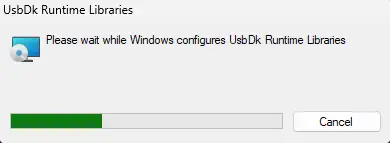
- Process: Setup run hone par UsbDk Libraries configure hongi, kripya green bar complete hone ka wait kare
🔹 Step 4: Restart System (Mandatory)
- Installation ke baad PC restart zaroor kare
Restart ke bina driver properly load nahi hota.
🔧 How to Use UsbDk Driver (Practically)
Ye Driver background me kaam karta hai.
Aapko manually kuch open karne ki zarurat nahi hoti.
Installation ke baad:
- Compatible tools automatically UsbDk API use karte hain
- USB device temporarily Windows se detach hota hai
- Tool ko exclusive USB access milta hai
⚠️ Isliye installation ke time phone disconnect/reconnect ho sakta hai — ye normal behavior hai.
❗ Common Errors & Troubleshooting
❌ “USBDK Failed to Load” Error
Ye error kaafi common hai, especially Windows 10/11 me.
✔ Fix Method (Recommended):
- Control Panel open kare
- Programs & Features me jaaye
- UsbDk Runtime Libraries uninstall kare
- PC restart kare
- Fresh installation kare
- Dobara restart kare
90% cases me issue solve ho jata hai.
❌ Tool USB Device Detect Nahi Kar Raha?
Possible Reasons:
- UsbDk Driver corrupted install
- Conflicting USB drivers
- System restart pending
Fix:
- UsbDk reinstall kare
- Extra USB drivers uninstall kare
- Clean reboot kare
🧠 Pro Technician Tips (Experience-Based)
✔ Is Driver Ko sirf tab install karein jab tool maange
✔ Normal MTK / Qualcomm drivers ke saath conflict ho sakta hai
✔ Ek PC ko “tool-specific system” bana ke rakhein
✔ Random USB software install avoid karein
✔ Driver install ke baad antivirus false warning ignore karein
📥 Download Area
Latest Version Details:
| Detail | Info |
|---|---|
| File Name | USB DK Driver |
| Version | Latest |
| OS Support | Windows 7 / 8 / 10 / 11 (32 & 64 bit) |
| Use Case | Flashing, Firmware Install, Device Detection |
⚠️ Note: Galat driver flashing se device detect nahi hoga. Carefully use kare.
👉 Note: Ye driver mostly advanced USB tools ke saath bundled aata hai, lekin aap ise separately bhi install kar sakte ho.
🎯 Conclusion
UsbDk Driver ek power-user level USB driver hai jo normal users ke liye nahi, balki advanced technicians aur developers ke liye design kiya gaya hai.
Agar aap flashing tools, utilities ya USB-based software use karte ho, to yeh driver silent backbone ki tarah kaam karta hai.
Is guide ko follow karke aap UsbDk related 90% issues khud hi solve kar sakte ho.
🔗 Related Guides (Internal Links)
- LibUSB Win32 Driver Installation Guide
- MTK USB Driver Download
- Qualcomm USB Driver Setup
- Mobile Repairing Course (Advanced Level)
Frequently Asked Questions (FAQ)
UsbDk Driver kis kaam aata hai?
Advanced USB tools ko direct device access dene ke liye.
Kya ye normal users ke liye zaroori hai?
Nahi, sirf advanced tools ke liye.
Kya Windows 11 support karta hai?
Haan, fully supported hai.
Kya ye safe hai?
Haan, open-source aur trusted framework hai.
Kya bina restart kaam karega?
Nahi, restart mandatory hai.
📌 Credits & Disclaimer
UsbDk (USB Development Kit) ek open-source USB framework hai jo Daynix community ke dwara develop kiya gaya hai.
Ye article sirf educational & technical guidance purpose ke liye publish kiya gaya hai.
Driver ka use sirf trusted tools ke saath hi karein.
Article compiled, optimized & presented by Rakesh Chauhan – Team Tekno World