
Agar aap Vivo smartphone ko PC ya Laptop se connect karna chahte ho for file transfer, firmware flashing, software update, debugging ya mobile repairing work, to Vivo USB Driver ka proper installation sabse pehla aur sabse important step hota hai.
Bina correct USB driver ke na to phone detect hota hai aur na hi flashing tools properly kaam karte hain.
Is complete master guide me hum Vivo USB Driver download, installation process, real use-cases, common errors, troubleshooting aur best practices ko simple Hinglish language me samjhenge — bilkul waise jaise ek experienced mobile technician apne junior ko training deta hai.
⚠️ Important Disclaimer
This guide is for educational and diagnostic purposes only.
Iska use sirf device connection, firmware flashing aur software troubleshooting ke liye karein.
Hum kisi bhi illegal modification ya security bypass ko promote nahi karte.
🔹 What is Vivo USB Driver?
Ye USB Driver ek official software package hai jo Vivo Android smartphones aur Windows computer ke beech ek stable communication bridge banata hai.
Jab aap Vivo phone ko USB cable se PC se connect karte ho, tab yahi driver decide karta hai ki:
- Phone detect hoga ya nahi
- Data transfer allow hoga ya nahi
- Flashing / repair tools phone ko read kar paayenge ya nahi
Simple shabdon me:
USB Driver = Phone aur PC ke beech translator
Isliye mobile repairing field me Vivo USB Driver ko base driver maana jata hai.
🔹 Why Do We Need Driver? (Driver Ki Zarurat Kyun)
Sirf charging ke liye driver ki zarurat nahi padti, lekin jaise hi aap technical kaam karte ho, driver mandatory ho jata hai.
Real-World Use-Cases:
- Phone ko Windows Explorer me detect karna
- File transfer (photos, videos, documents)
- Firmware flashing
- Software update / OS upgrade
- USB debugging & app testing
- Repairing tools ke saath stable connection
Agar driver missing ya corrupt ho, to phone Unknown Device ke roop me dikh sakta hai.
✨ Vivo USB Driver Features (Key Highlights)
✔ All Vivo Android smartphones & tablets supported
✔ Windows XP se Windows 11 tak compatible
✔ 32-bit & 64-bit architecture support
✔ 100% free & official
✔ Secure and malware-free
✔ Stable connection for flashing & data transfer
✔ Regular updates by Vivo Community
💻 System Requirements & Compatibility
Supported Operating Systems:
- Windows XP
- Windows 7
- Windows 8 / 8.1
- Windows 10
- Windows 11
⚠️ Note: macOS & Linux ke liye official Ye USB Driver available nahi hai (Windows users ke liye hi design kiya gaya hai).
🛠️ How to Install on Windows (Step-by-Step)
🔹 Step 1: Download & Extract
- Vivo USB Driver ZIP file download kare
- ZIP file extract kare
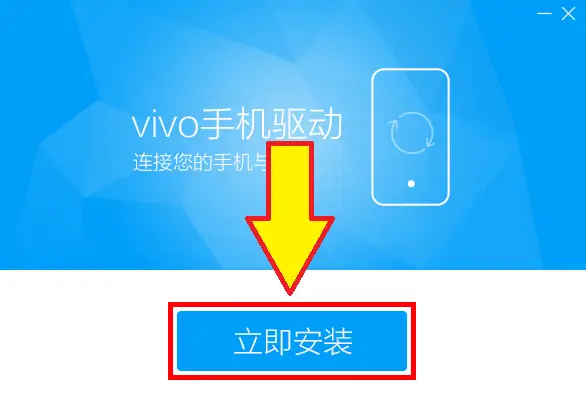
🔹 Step 2: Run Installer
Vivo_USB_Driver.exepar double-click kare- Install Now button par click kare
🔹 Step 3: Installation Process
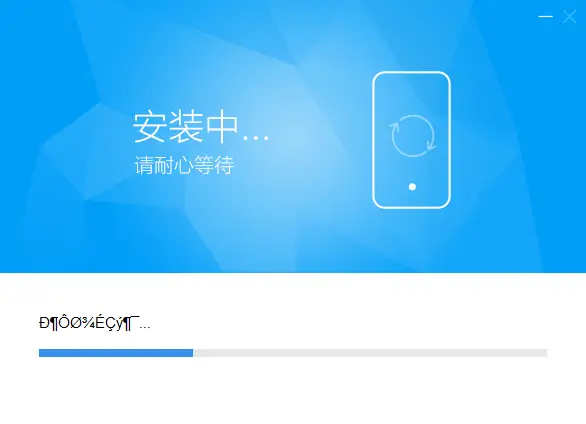
- Driver installation start ho jayegi
- Windows Security popup aaye to Install anyway select kare
- Finish button par click karein.
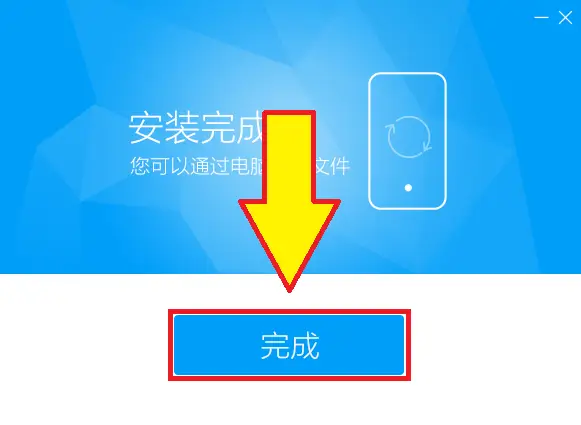
🔹 Step 4: Restart System
- Installation complete hone ke baad PC restart karein
Restart ke baad aapka Vivo phone properly detect hona chahiye.
🔧 How to Use (Practical Usage)
Driver install hone ke baad aap:
- Phone ko PC se connect kar sakte ho
- Data transfer kar sakte ho
- Flashing tools ke through firmware install kar sakte ho
- Debugging enable karke app testing kar sakte ho
📌 USB Debugging enable karna na bhoolen:
Settings → About Phone → Build Number (7 times tap) → Developer Options → USB Debugging ON
❗ Common Problems & Troubleshooting
❌ Vivo Phone Detect Nahi Ho Raha?
Possible Reasons:
- Driver properly install nahi hua
- Faulty USB cable
- USB Debugging OFF
Fix:
- Driver reinstall karein
- Original USB cable use karein
- Different USB port try karein
❌ File Transfer Option Nahi Aa Raha?
- Notification panel me File Transfer (MTP) select karein
- USB Debugging ON karein
🧠 Pro Technician Tips (Experience Based)
✔ Ek PC me multiple brand drivers mix na karein
✔ Flashing se pehle Device Manager open rakhein
✔ Windows update ke baad driver status check karein
✔ Cheap USB cable avoid karein
📥 Download Area
Latest Stable Version (Recommended):
| Detail | Info |
|---|---|
| File Name | Vivo USB Driver |
| Version | Latest |
| OS Support | Windows 7 / 8 / 10 / 11 (32 & 64 bit) |
| Use Case | Flashing, Firmware Install, Device Detection |
⚠️ Note: Galat driver flashing se device detect nahi hoga. Carefully use kare.
👉 Tip: Agar latest version detect issue de raha ho, to ek older stable version try kare.
🎯 Conclusion
Vivo USB Driver ek silent hero hai jo background me kaam karta hai, lekin bina iske mobile repairing, flashing aur PC connection possible hi nahi hota.
Agar aap Vivo phones ke saath kaam karte ho — chahe beginner ho ya technician — to yeh driver aapka basic weapon hai.
Is guide ko ek baar dhyaan se samajh lena future ke 80–90% Vivo connectivity issues ko solve kar deta hai.
🔗 Related Guides
- Vivo Stock Firmware Download Guide
- Qualcomm USB Driver Installation
- Mobile Repairing Course (Beginner to Advanced)
Frequently Asked Questions (FAQ)
Vivo USB Driver kis kaam aata hai?
Phone aur PC ke beech communication ke liye.
Kya Vivo USB Driver free hai?
Haan, 100% free aur official hai.
Kya Windows 11 support karta hai?
Haan, fully supported hai.
Driver ke bina flashing possible hai?
Nahi, flashing ke liye driver mandatory hai.
Kya sabhi Vivo models support hote hain?
Haan, lagbhag sabhi Vivo smartphones & tablets.
📌 Credits & Disclaimer
Vivo USB Driver Vivo Mobile Communication Co., Ltd. ke devices ke liye banaya gaya ek official driver package hai.
Yeh article sirf educational & technical guidance purpose ke liye publish kiya gaya hai.
Driver files hamesha trusted sources se hi download karein.
Article compiled, optimized & presented by Rakesh Chauhan – Team Tekno World